
What Linux Is and Why It Exists
Linux is an operating system, just like Windows or macOS. It manages files, hardware, and programs. The difference is that Linux is open source, meaning its code is public and built by a global community instead of a single corporation.
The project began in 1991 when Linus Torvalds, a Finnish student, created a small free kernel. Developers around the world improved it. Thirty years later, Linux powers most of the internet, Android phones, servers, smart devices, and even parts of space missions.
When you use Linux on your computer, you’re using the same foundation that runs data centers and research labs, just shaped into versions that look and feel familiar. It has a desktop, folders, apps, and settings like any other system. What makes Linux special is freedom. You can read and change its code, decide what your computer shares, and even build your own versions, called distros.
Why Privacy Users Prefer Linux
If you value privacy, Linux is one of the few operating systems that doesn’t treat you as a data source. Here’s why:
- No hidden tracking: Linux is open source, so if telemetry or tracking were added, the community would spot it immediately.
- No forced accounts: You don’t need to sign in with a Microsoft or Apple ID to use Linux. It can run entirely offline.
- Control over updates: You decide when and how updates happen. No forced restarts or background installs.
- Security through transparency: Open code means faster fixes and fewer secrets.
- Community over corporation: Maintained by volunteers and nonprofits, not data-harvesting companies.
Linux gives you ownership again. It doesn’t phone home or assume what you want. It lets you decide how much you share.
Linux vs Windows vs macOS
| Feature | Windows | macOS | Linux |
|---|---|---|---|
| Source Code | Closed | Closed | Open source |
| Default Data Collection | Heavy | Moderate | Minimal |
| User Control | Limited | Moderate | Full |
| Cost | Paid | Paid hardware | Free |
| Customization | Limited | Some | Extensive |
| Updates | Forced | Managed | User controlled |
Windows and macOS trade convenience for control. Linux stays transparent, free, and trustworthy. For privacy users, that difference matters.
How Linux Distributions Work
There isn’t one version of Linux. There are many, known as distributions or distros. Each uses the same kernel but packages it differently. Think of it like different car models built around the same engine.
Popular beginner options include:
- Ubuntu: User friendly, large community, easy installation.
- Linux Mint: Familiar for Windows users, stable and simple.
- Fedora: Polished, professional, supported by Red Hat.
- Debian: Old, stable, and a base for many others.
- Pop!_OS: Great for creators and gamers, supports modern hardware.
Installing Linux Step by Step (Linux Mint Example)
Linux Mint is one of the easiest Linux distributions for beginners. It feels familiar to Windows users, supports most hardware out of the box, and can run on older machines. The Cinnamon edition is the most popular and user friendly.
1. Download Linux Mint
Go to the official site: linuxmint.com/download.php. Choose Cinnamon for a modern desktop experience. Pick a mirror near your location and download the ISO file (around 2.6 GB).
2. Create a Bootable USB with Rufus (Windows Users)
Rufus is a small free utility that writes ISO files to USB drives so you can boot from them. Download it from rufus.ie.
- Insert a USB drive (at least 8 GB).
- Open Rufus and select your USB under Device.
- Click Select and choose the Linux Mint ISO you downloaded.
- Leave everything else as default (GPT partition scheme, UEFI target).
- Click Start. It will erase the USB and copy Linux Mint onto it.
3. Boot from the USB Drive
Restart your computer and press the key for your boot menu. It varies by brand:
- HP: Esc or F9
- Dell: F12
- Lenovo: F12
- Acer: F12
- ASUS: F8 or Esc
Select your USB drive from the list and press Enter. Linux Mint will start without changing your computer yet.
4. Try Before Installing
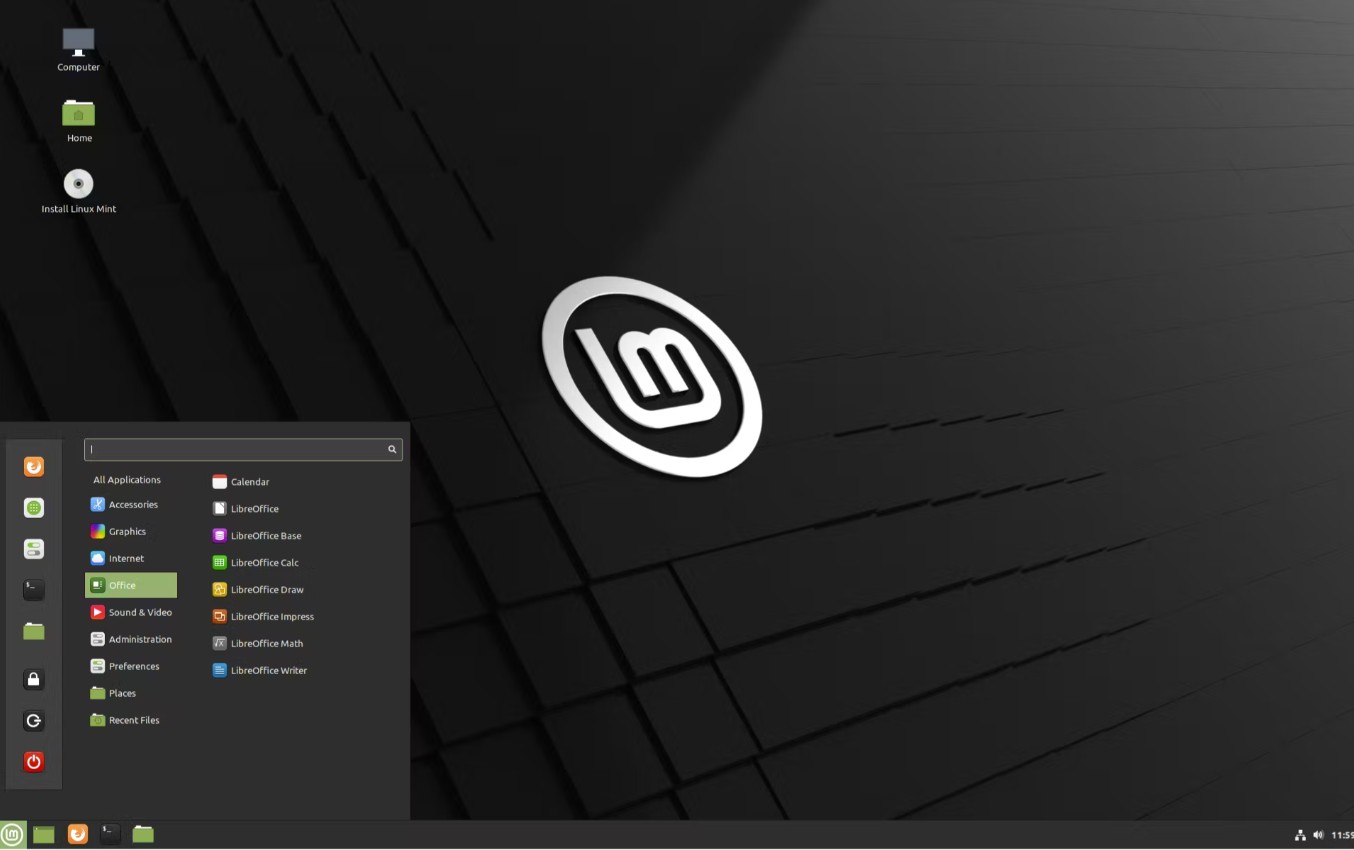
When Mint loads, choose Try Linux Mint. It runs from the USB so you can test your Wi-Fi, sound, and keyboard. If everything works, double-click the Install Linux Mint icon on the desktop.
5. Installation Steps
- Select your language and keyboard layout.
- Choose Install multimedia codecs (recommended for audio/video).
-
Select the install type:
- Install alongside Windows: keeps Windows and adds Mint as an option at startup.
- Erase disk and install Linux Mint: wipes everything and installs Mint fresh.
- Enable Encrypt the new Linux installation if you want full-disk encryption.
- Pick your timezone, username, and password.
- Click Install Now and confirm. The process takes about 10–15 minutes.
6. Remove the USB and Reboot
When it finishes, remove the USB stick and press Enter to reboot. You’ll see the Linux Mint login screen. Log in with the password you created.
7. First Updates
Click the small shield icon near the clock to open the Update Manager. Click Refresh then Install Updates. This installs security fixes and kernel updates.
Getting Comfortable with Mint
The Cinnamon desktop will feel familiar if you’ve used Windows. The menu is in the bottom left corner, your system tray is in the bottom right, and open apps appear on the panel.
- Software Manager: Mint’s built-in app store. Use it to install software like Firefox, VLC, or LibreOffice.
- Driver Manager: Finds proprietary drivers for graphics or Wi-Fi chips.
- Settings: Control appearance, themes, privacy, and startup apps.
- Timeshift: A backup tool similar to System Restore in Windows. Create a snapshot after updates.
To install apps manually, you can also use the terminal. For example, to download VLC Media Player:
sudo apt update
sudo apt install vlc
Each command is transparent. You’ll always see what the system is doing, no background installers or telemetry.
Privacy and Security Basics
- Keep it updated: Open the Update Manager regularly or run
sudo apt upgrade. - Use encryption: Enable full-disk encryption during setup, or encrypt specific folders later with
veracrypt. - Set up a firewall: Mint includes GUFW. Search for “Firewall” in the menu and turn it on with default rules.
- Limit data sharing: Linux Mint collects none by default. You can still disable crash reports under System Settings → Privacy.
- Secure your browser: Use Firefox with Enhanced Tracking Protection or install LibreWolf.
- Back up often: Use Timeshift for system snapshots and Deja Dup for personal files.
Common Misconceptions
Linux doesn’t require constant tinkering. Once installed, it can run for years with minimal maintenance. It’s not just for programmers or hackers. Mint comes pre-configured with a modern interface and all essential apps. Gaming, creative work, and streaming are fully supported with tools like Steam, OBS, and Kdenlive.
Where to Go Next
Keep learning by exploring these trusted communities and resources:
- Linux Mint Community: official forums and guides.
- Ask Ubuntu: large Q&A site for Linux troubleshooting.
- Linux Journey: interactive lessons for absolute beginners.
- It’s FOSS: tips, reviews, and tutorials for desktop Linux users.
Here are some basic commands:
ls # list filescd foldername # change directorysudo apt update # check for updatessudo apt upgrade # install updates
Linux is about ownership, not rebellion. You decide what runs, what connects, and who can see your data. Installing it once puts you in control permanently.
Blackout VPN exists because privacy is a right. Your first name is too much information for us.
Keep learning
FAQ
What is Linux in simple terms?
Linux is an operating system like Windows or macOS. It is open source, so anyone can inspect the code and improve it. That transparency is why privacy users trust it.
Can I try Linux without installing it?
Yes. Boot a live USB and choose Try without installing. It runs from the USB and does not change your files. If you like it, you can install from the same USB later.
Will my hardware work on Linux?
Most laptops and desktops work fine, especially with Ubuntu, Mint, or Fedora. Very new Wi-Fi or GPUs may need proprietary drivers that the installer can add during setup.
Do I need antivirus on Linux?
For normal desktop use you usually do not. Keep the system updated, install software from trusted repositories, and use full disk encryption. Servers have different needs.
Can I game on Linux?
Yes. Steam with Proton runs many Windows titles. Native Linux games work out of the box. Check ProtonDB to see how well a specific game runs on your hardware.
Which distro should a beginner use?
Start with Linux Mint, Ubuntu, or Fedora. They have simple installers, large communities, and good hardware support. You can switch later without losing your files if you keep data on a separate partition.
How do I install apps on Linux?
Use your distro's Software Center for a point and click experience, or install from repositories with the package manager. For example, to install VLC Media Player on Ubuntu or Mint: sudo apt install vlc.